
1 Chapter 1 – Overview
Learning Objectives
Upon completion of this short tutorial staff will be able to navigate through some of the main features and capabilities of the LMS to get a general sense of how it works.
- How the LMS changes staff learning and development
- How to log into the LMS
- How to browse available courses
- Navigate your dashboard

Hey LMS, What do you do?
A learning management system is a software tool used to centralize and streamline learning opportunities within an organization. It provides a means of housing learning material in a way that is accessible and organized for easy discovery. You can use it to register for courses, link to webinars, and take online courses. You can also track your learning and browse upcoming learning events.
So, how does this change learning and development for you? Now you’ll be able to find everything in one spot. It will help to simplify access to learning opportunities and be a spot that lets UAL staff see what internal learning is available and even help identify where gaps exist that we could fill.
Logging On
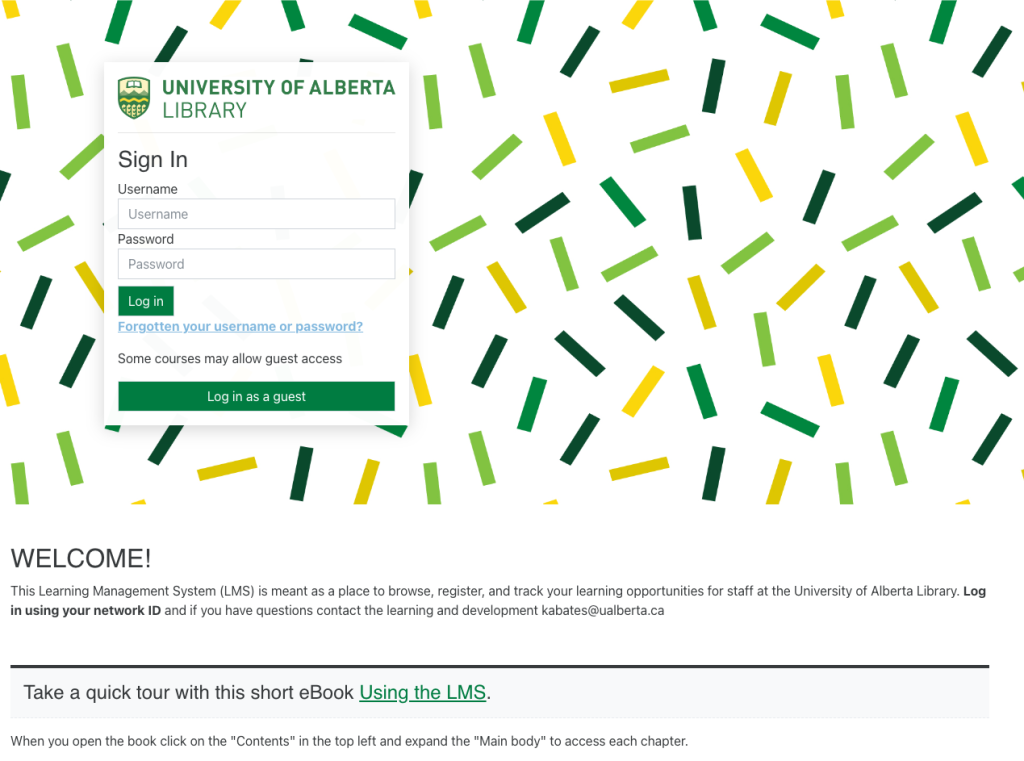
Logging into the LMS is easy, you just use your desktop login credentials.
Browse Courses
If you would like to browse courses, you can look through course categories. Some courses will require registration, but typically only if they are face-to-face. Otherwise, online courses and other learning resources are open for you to use, look at, and learn from whenever you have the time or inclination.
New courses and learning events will be added as they are available so come back for a look often 🙂
Navigating Your Dashboard
Access your dashboard from the left navigation menu. From there you can access a number of features:
– List of upcoming learning events
– Quick access to courses you have in progress
– Access to list of courses you’ve completed
– Link to calendar of with upcoming courses
Using Private Files
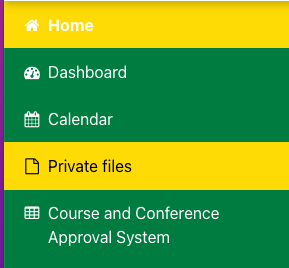
Private files can be used to for you to save particularly useful handouts and learning resources. You can access and add to your private file by clicking on the link in the left hand navigation menu then drag and drop the selected files into the space provided.
That should be enough to get you started with the LMS. The next chapter will review how to find register and cancel a registration.